Why templates print small
Printers cannot print to the very edge of a sheet, so nearly every print dialog offers to "help" by shrinking the page until everything fits inside the printable margins. That help is 3-6% of silent scaling — and it is usually the default. A 4.5 inch envelope face printed at 96% comes out at 4.32 inches; the 4.25 inch card it was drawn for no longer fits. Nothing looks wrong on the sheet. The only symptom is a project that mysteriously does not close, fit, or align.
The settings that cause it wear different names in different dialogs: Fit to page, Shrink to fit, Fit printable area, Scale to fit media. The setting you want also wears different names: Actual Size, 100%, or Scale: 100. Whatever the dialog calls it, the rule is one sentence: no scaling, ever, for anything with real dimensions.
The test square: proof beats hope
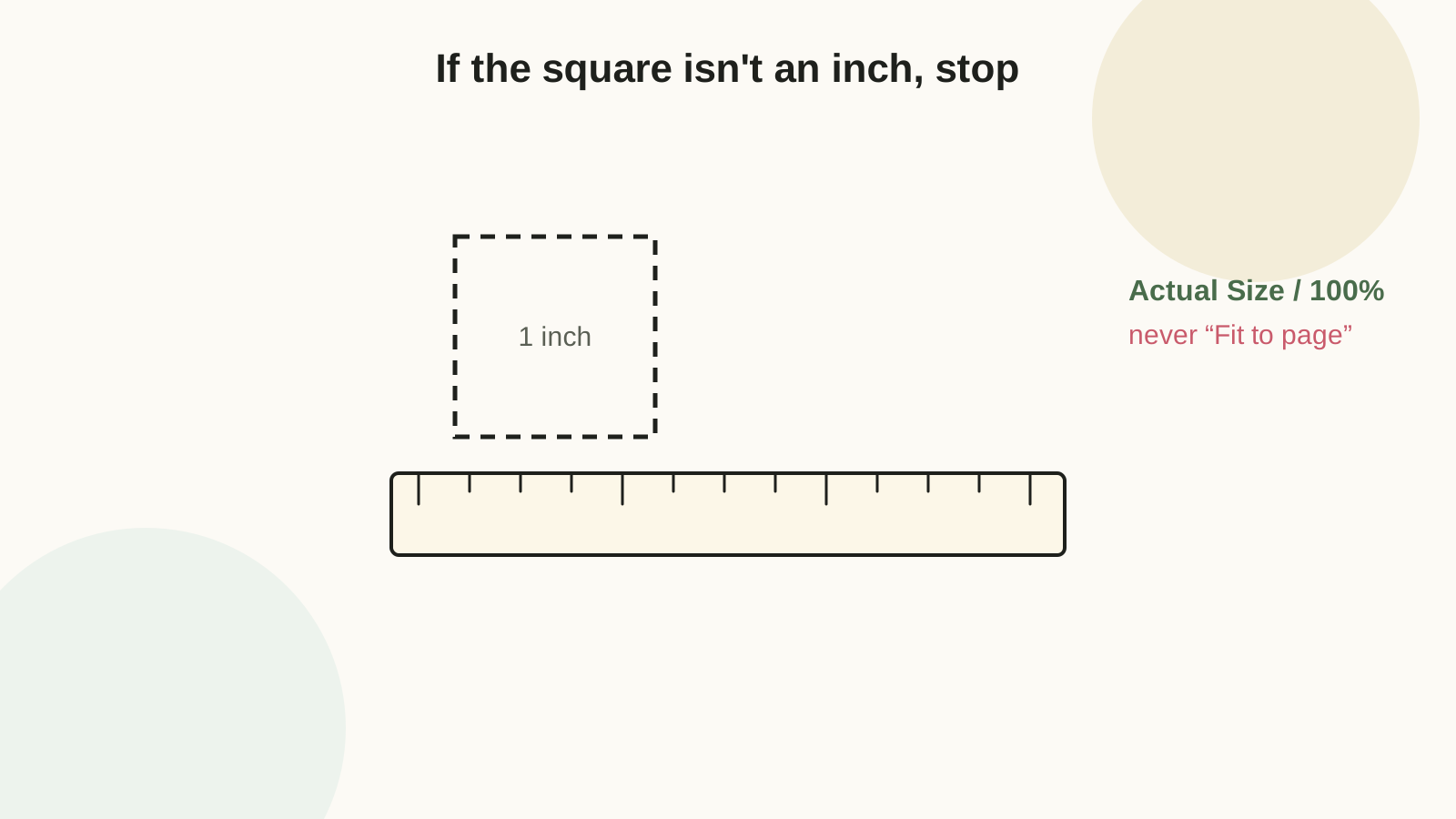
Every Craftagram template carries a dashed 1-inch square. After printing, put a ruler on it:
- Exactly 1 inch (25.4 mm): the whole sheet is true. Cut with confidence.
- Short (typically 15/16 in): the dialog scaled the page. Find the fit-to-page setting, switch to Actual Size, reprint.
- Long: rarer — something upscaled the file, usually an image viewer set to "fill page." Print from a different app.
Measure the square on every first print of a template, and again any time you change printer, app, or computer. One measurement replaces all guessing — this is why the square is printed on the sheet instead of in the instructions.
Printing from each kind of app
| You are printing… | Where scaling hides | What to do |
|---|---|---|
| A PDF in Adobe Reader / Preview | "Fit" is the default in the Size options | Choose Actual Size (Reader) or set Scale to 100% (Preview) |
| An SVG or web page in a browser | "Fit to printable area" plus browser margins | In the print dialog set Scale to 100 (Chrome: More settings → Scale → Custom → 100); leave margins Default |
| An image (PNG/JPG) in a photo app | Photo apps love "fill page" | Avoid if possible — photo apps rarely respect physical size. Open in a browser or PDF instead |
| From a phone or tablet | Mobile print dialogs often hide scale entirely | Works on many systems, but verify the square — if it fails, print from a computer |
Craftagram templates are SVG files, which browsers print at true physical scale as long as the dialog says 100%. Download the file, open it in any browser tab, print at 100%, measure the square.
Letter versus A4
US letter is 8.5 x 11 inches; A4 is 210 x 297 mm — about a quarter inch narrower and two-thirds of an inch taller. A letter-designed template prints on A4 at 100% as long as the drawing keeps a little side margin, because the width is the only dimension A4 loses. Centered, an A4 print gives up roughly 0.12 inch on each side compared to letter, and Craftagram templates keep their content inside that shared safe area. So the practical rule is: print at 100% on A4 too — never "fit" — and check the test square. If the square is true and no edge went missing, the template works. The full size comparison lives in the paper sizes reference.
A reader's 2-inch favor box printed, cut, and scored cleanly — but the tuck flap sat 1/8 inch short of its slot. The test square measured 15/16 in: the PDF viewer had applied "Fit to page," shrinking everything 6%. On a 2-inch panel that is 1/8 inch — invisible on the flat sheet, fatal at the fold. One reprint at Actual Size fixed a problem that looked like a template error.
When the square measures right but the project still misfits
Scale is only one of three printing gremlins:
- Drift: printers place the page image a millimeter or two differently sheet to sheet. Harmless for single templates; visible on double-sided printing. Fix by designing forgiving backs, not by fighting the printer.
- Clipping: content inside the drawing but outside the printer's printable area simply vanishes. If a template edge is missing, check the printer's minimum margins (usually 0.25 in) rather than the scale.
- Paper behavior: humid cardstock grows slightly; heavy ink coverage swells paper locally. If precision matters, acclimate the paper indoors for a day — the troubleshooting guide covers the environmental cases.
A note on copy machines
Photocopying a printed template re-introduces scaling: most copiers default to 97-99% to avoid edge cutoff, and each generation compounds. Copy the template once at an explicit 100%, then measure the square on the copy. For repeated use, keep the printed original as a master and trace it instead — tracing is the only reproduction method with zero scale error.
Set Scale to 100 / Actual Size, print, measure the dashed square with a ruler, and only then cut. Sixty seconds, once per template, ends every mystery misfit.
FAQ
My print dialog has no scale option at all.
Some minimal dialogs (and many phone dialogs) hide it. Look under "More settings," "Advanced," or the app's own print preferences. If it truly is not there, print from a browser or PDF reader on a computer, which always expose scale.
Is "borderless printing" the same as actual size?
No — borderless modes usually overscale the page a few percent to guarantee edge-to-edge coverage. Great for photos, wrong for templates. Turn borderless off for anything with dimensions.
Can I resize a template on purpose?
Yes — printing at 80% or 120% scales every dimension together, which works for decorative shapes like flower petals and garland pieces. Never rescale functional templates (envelopes, boxes) whose measurements must match a real object — redraw those instead.